
Easy Red 2 Guide: Squad Tactics, Weapons, and Vehicles
Use this Easy Red 2 guide to learn squad commands, manage ammo, call artillery, fight tanks, and handle the new melee system and Dynamic Operations mode.
Jump to
How to Get Started and Survive Your First Mission
A machine gun covering your approach can stop an entire squad before it reaches the objective. Learning how to move your soldiers, equip their weapons, and request support gives you more ways through that position. This Easy Red 2 guide walks you through those systems, including the melee combat and Dynamic Operations introduced in version 2.1.1.
Start with the training campaign. Practice infantry controls, medical treatment, artillery operation, and vehicle handling before taking those responsibilities into a frontline mission. Each system has its own interactions, and knowing how to reach them matters when your squad is under fire.
Before deploying:
- Enable the crosshair, hitmarker, and armor penetration indicators if you want clearer combat feedback.
- Enable 3D markers to help place squad orders and support requests.
- Adjust aiming sensitivity so you can track targets through iron sights.
- Check your keyboard or controller bindings, especially interactions that use a held button.
On keyboard, several held inputs open menus that a quick press can miss:
| Input | Action |
|---|---|
| Hold R | Open reload choices for available magazines or clips |
| Hold I | Open quick inventory actions |
| Hold X | Select another squad member to control |
| Hold Tab as squad leader | Open squad commands and support options |
| Hold F over a wounded soldier | Open treatment and carrying interactions |
| M | Open the map |
Move between cover and check the map before crossing exposed ground. Combat can end with one or two hits, and friendly fire makes positioning around your own soldiers important. Stay clear of a teammate’s firing line while advancing.
Official page: Easy Red 2 (easyred2.com)
Understand Objectives, Phases, and Reinforcement Tickets
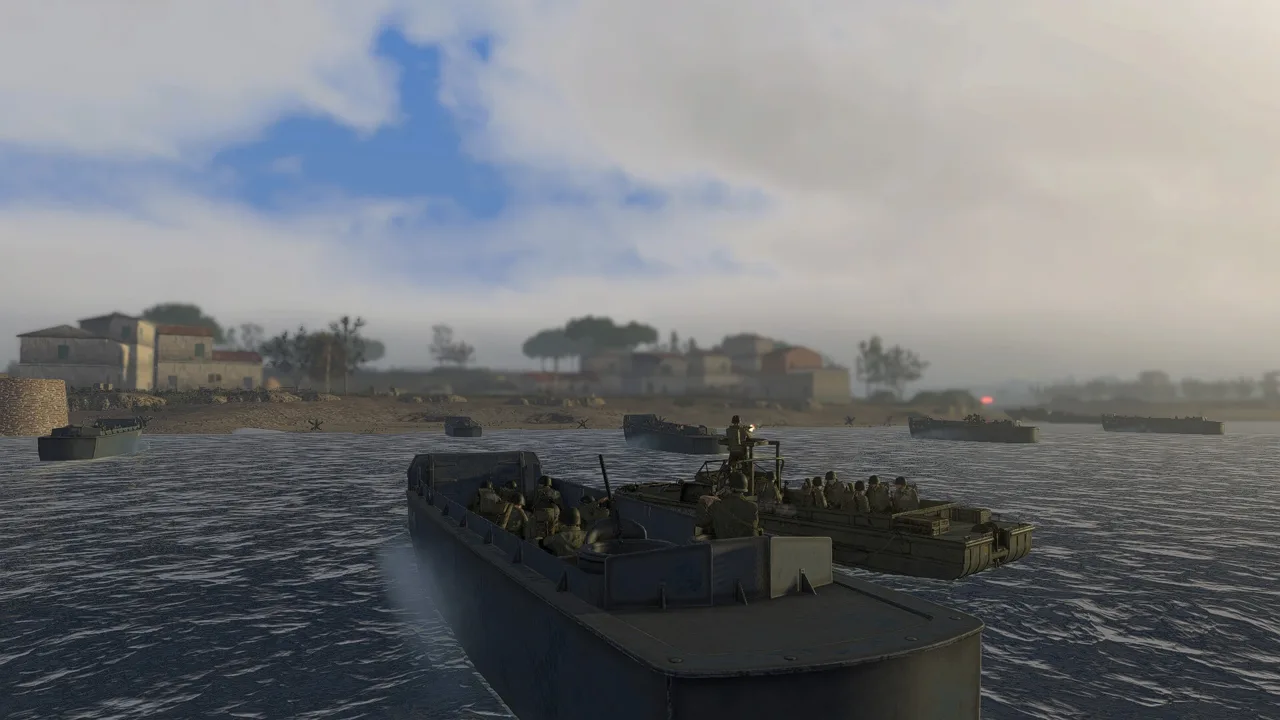
In Operation missions, attackers work through successive phases by capturing designated objectives. Defenders try to stop that advance and exhaust the attacking force’s reinforcement tickets.
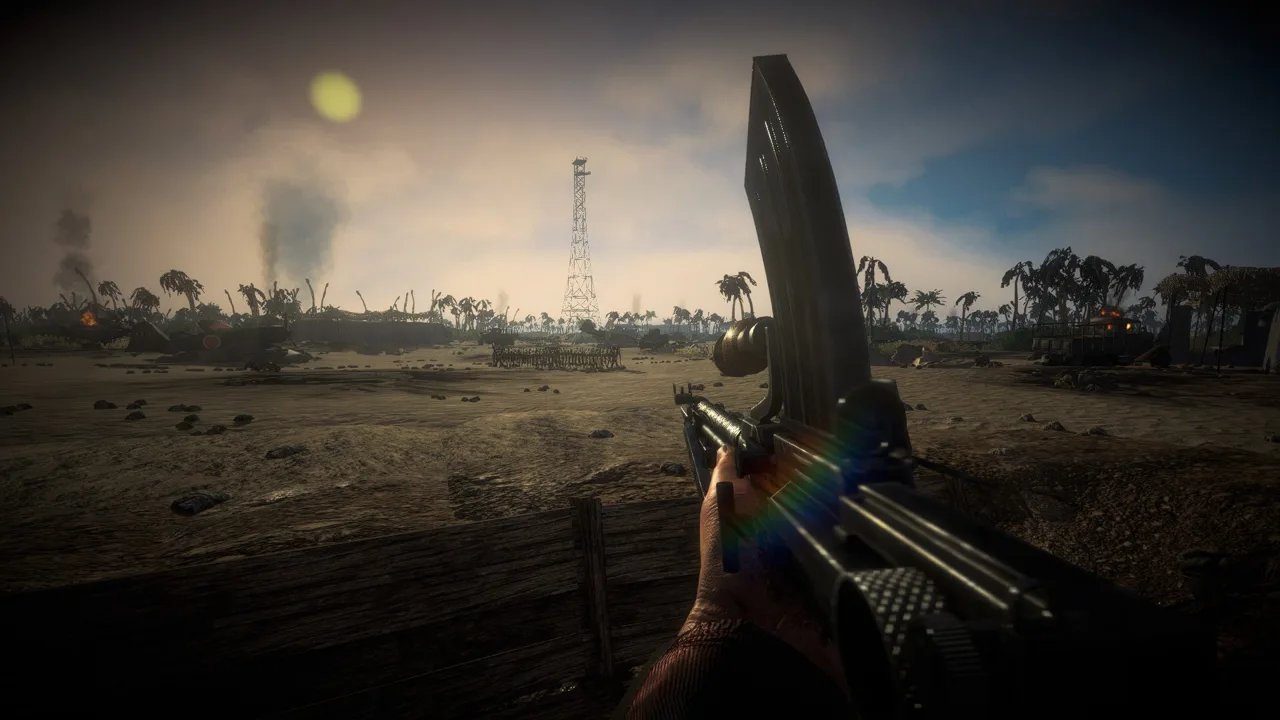 Image: Steam / Marco Amadei
Deploying attacking squads and vehicles consumes tickets, while completing phases grants additional tickets. Repeatedly losing units on the same approach can therefore undermine the attack even when you are getting kills.
Some phases have multiple capture points. Defenders can retake captured positions while the phase remains active, so an objective behind you can still need protection.
Before moving your squad, follow this sequence:
- Open the map and identify the active objectives.
- Check which positions your team already holds.
- Find the enemy position covering your approach.
- Choose a route that gives your squad cover or changes the angle of attack.
- After capturing a point, check whether another objective must fall before the phase advances.
Push the Frontline uses a different structure: both teams attack and attempt to push the opposing force backward through phases. Read the mission’s objective state before committing to a long flank; the position that mattered earlier can change hands.
Command Your Squad and Keep Fire Support Available
Squad leaders can direct AI soldiers through the command wheel. Movement orders remain useful even when artillery or a working radio is unavailable.
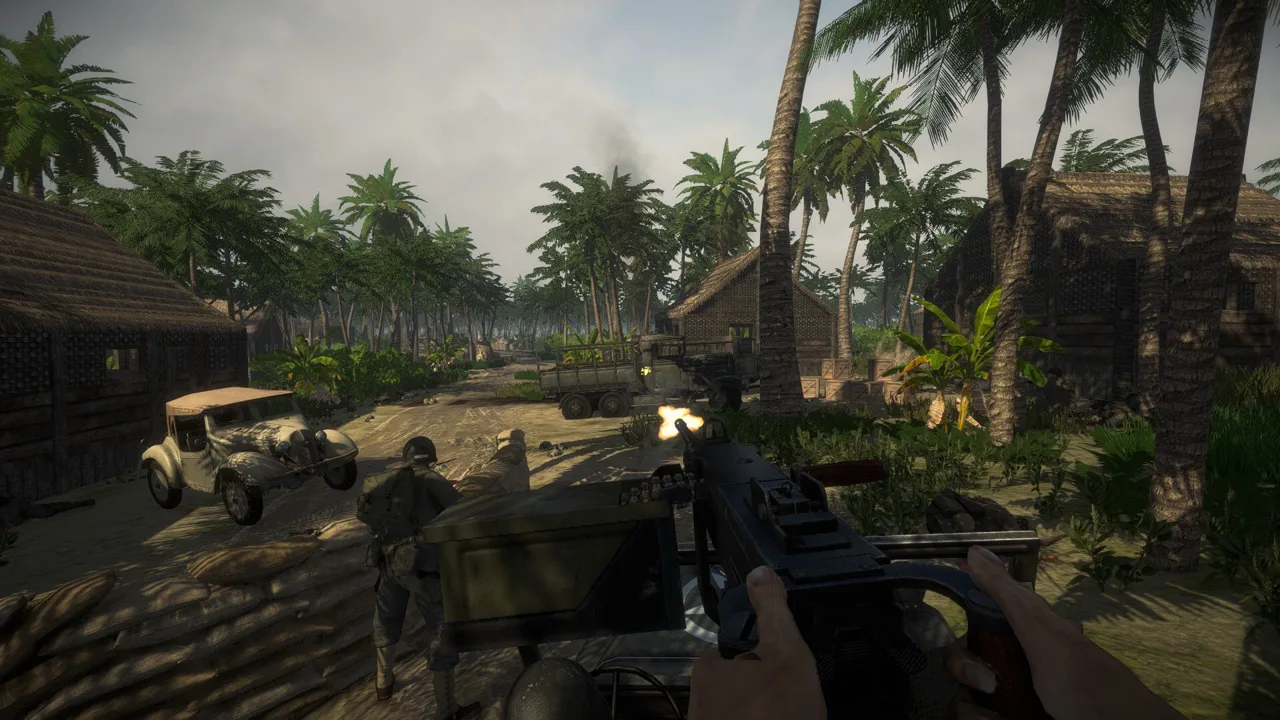 Image: Steam / Marco Amadei
Use Orders to Shape the Approach
Move and Hold sends your squad to a selected position. Use it to establish a firing position before you move into an exposed area.
Follow brings the squad back with its leader. Reissue it when you finish using a temporary position and want the soldiers to accompany your advance.
Attack Objective from Direction routes the squad toward an objective from a chosen approach. Use it to get around a mounted gun covering the direct route.
Charge sends soldiers rapidly toward the selected point. Check the ground ahead before issuing it; speed alone will not remove the gun covering an open field.
Coordinate movement with covering fire. Have one element engage the enemy while another moves, then shift the firing position as the advance continues. Machine guns provide sustained fire, while riflemen and other roles can move toward the objective.
Protect the Radio Link
Artillery requests depend on radio access and available support. Keep your radioman with the squad instead of leaving that soldier exposed during an advance.
If the radioman falls, pick up and equip the radio backpack as squad leader to retain access to support requests. A radio must be worn to serve that purpose.
Use support for a specific obstacle:
- Smoke artillery: Place it to obstruct enemy sightlines during a crossing or assault.
- Explosive artillery: Target entrenched enemy positions or an approach being used to reach your defensive objective.
- Tank support: Direct available allied armor to hold a selected position.
Check friendly positions before requesting explosive fire. Place smoke with equal care: a screen that blocks your own supporting guns can complicate the assault.
Switch Roles When the Situation Changes
You can take control of different squad members during a mission. Use that flexibility to bring the right equipment into play.
Switch to a medic when wounded soldiers need treatment, an anti-tank soldier when armor blocks the objective, or a machinegunner when your squad needs a sustained firing position. Exact equipment depends on the faction and squad loadout, so inspect the inventory before committing to a task.
Manage Ammunition, Equipment, and Wounded Soldiers
Looting a weapon also creates an ammunition problem: you need compatible ammunition to keep using it. Take the appropriate magazines or ammunition from its previous owner, or resupply at an ammunition crate.
 Image: Steam / Marco Amadei
The inventory supports unpacking magazines and moving compatible cartridges into other magazines. Use that system when you have ammunition spread across equipment you want to reorganize.
Hold the reload button to inspect available reload choices. This is useful for weapons with different magazine options, including stick magazines and drums.
Watch inventory weight while looting. An overweight soldier cannot run, so drop equipment you do not need before a long movement or exposed crossing.
Check Attachments and Required Gear
Some weapons begin with compatible attachments stored separately. Inspect your inventory for a scope, bayonet, or bipod, then use the attachment interaction to install it.
Flamethrowers require more than the handheld weapon. Take the fuel and backpack, wear the backpack, and equip the hose to use the complete setup.
Hold the inventory button for quick actions such as attaching equipment, changing worn gear, or using medical items. Practice those interactions away from incoming fire.
Treat the Injury Shown
Bandages stop bleeding. Medical treatment also uses specific tools, with the wounded soldier’s indicator showing which treatment is needed.
To help a casualty:
- Approach and hold the interaction button.
- Read the treatment indicator.
- Select the appropriate treatment.
- Use the carrying interaction to drag the soldier into cover when necessary.
Cover the rescue with another soldier’s fire when possible. Avoid leaving both the casualty and medic exposed to the same enemy position.
Handle Bipods, Bayonets, and Close-Quarters Combat
Weapon handling deserves its own practice session. A machine gun that feels awkward while moving can behave differently once its bipod is supported.
Set Up Supported Weapons
Some machine guns and anti-tank rifles require a deployed bipod for aiming down sights. Move to suitable ground or a supporting surface, then establish the firing position before engaging.
If deployment is awkward, reposition on the surface or change your stance. Version 2.1.1 improves bipod placement and behavior on steep terrain, including firing while prone.
Choose a position with a useful line of fire and nearby cover. Firing from an exposed ridge gives enemy infantry and vehicles a clear view of your location.
Learn the Version 2.1.1 Melee Controls
The Cold Steel update expands melee handling beyond the older bayonet interactions:
- Hold the melee button to draw or put away a bayonet as a knife.
- Press 3 on keyboard to cycle melee weapons in your inventory.
- Supported melee weapons have dedicated slashing, stabbing, and blocking animations.
- Switching between melee weapons no longer brings out your firearm in between.
Enemy AI can also draw melee weapons at close range, including when its firearm is empty. Keep enough distance to use your gun when an enemy begins closing on you.
Practice drawing and putting away a melee weapon before entering close quarters. That interaction shares a button with other melee actions, so the distinction between pressing and holding matters.
Fight Tanks and Operate Heavy Weapons
Armor changes which equipment your squad needs. Switch to an anti-tank role or use an available gun when an enemy vehicle controls the approach.
Match the Ammunition to the Target
Tank guns and artillery can offer different shell types:
| Ammunition | Purpose |
|---|---|
| AP | Armor-piercing fire against vehicles |
| HE | Explosive fire against infantry |
| APHE | Armor-piercing ammunition with an explosive effect, available on some weapons |
Inspect the ammunition selection before firing. Avoid carrying forward the outdated idea that HE is useless; use it against infantry, and select armor-piercing ammunition for armored targets.
Tank machine guns also give you an option against infantry without spending a cannon shell on every soldier.
Aim for a Useful Impact Angle
Armor protection differs across vehicle components, and the impact angle affects penetration. Seek a side or rear shot when the route allows it, and aim for a more direct impact against the armor surface.
Use the training range’s penetration display to examine a particular weapon against a particular tank. Change your firing angle and target different components to learn where that combination can penetrate.
Avoid assuming that every turret front is weak or that every rear hit will destroy the vehicle. Pick the shot using the tank in front of you and the weapon you are carrying.
Learn the Gun and Aircraft Before Deploying
When operating artillery for a requested bombardment, the target indicator supplies aiming information. Traverse toward the shell marker and adjust elevation to match the displayed value. Practice that process in training before trying to support infantry under pressure.
Aircraft add throttle management, weapon selection, and attack alignment. Learn takeoff and basic turning before attempting ground attacks. Keep checking airspeed during maneuvers; slowing too far can cause the aircraft to fall.
For both tanks and aircraft, inspect the current vehicle’s weapons and controls. Loadouts differ, so a familiar-looking vehicle does not guarantee the same ammunition or attack options.
Explore Cold Steel and Dynamic Operations
Version 2.1.1 adds systems that affect both returning players and newcomers:
- Battles of Khalkhin Gol: Nine missions covering the 1939 conflict.
- Mongolia and Manchukuo: Newly represented factions with dedicated voices, uniforms, weapons, and equipment.
- Type 89 Grenade Discharger: A portable Japanese support weapon with an adjustable range scale.
- Dynamic Operations: A prototype mode built around seeded battles, zone capture, and reinforcement spending.
Capture Zones to Build Your Force
Dynamic Operations uses a seed-based generation system. Reusing a seed allows a particular generated battle to be reproduced.
Capturing zones earns victory points and reinforcement tickets. Spend those tickets to call in better-equipped units and strengthen your force as the battle develops.
Prioritize taking and holding zones when planning your movement. A distant firefight can draw your squad away from the positions that generate resources.
Use the same seed when practicing an approach. Repeating the battlefield gives you a chance to change your route or reinforcement choices while keeping the generated battle consistent.
Put Japanese Grenadiers to Work
The Type 89 Grenade Discharger provides an adjustable-range infantry support option. Dedicated Japanese grenadier squads contain 3 grenadiers, each carrying 8 Type 91 grenades as ammunition.
AI grenadiers can respond to a squad leader’s artillery orders. They can also engage autonomously when their squad has spotted enemies outside their direct line of fire.
Try the range adjustment before a mission depends on your accuracy. When commanding the squad, use the artillery order interaction to direct its available indirect fire.
Play Co-op and Build Custom Missions
Co-op lets you take the campaign’s combined-arms battles into a shared mission against AI. Divide responsibilities around the equipment available: coordinate infantry command, medical support, armor, and heavy weapons with your teammates.
For multiplayer, the relevant features include:
- Online co-op and online PvP.
- Full controller support.
- Windows, macOS, and Linux support for the PC release.
Check a server’s gameplay settings before joining. Multiplayer rules can control whether third-person view, crosshairs, and hitmarkers are allowed, so your personal settings do not always determine what appears during a match.
On PC, the map editor, mission tools, and modding support let you create scenarios beyond the campaign. Start with a focused encounter: place an objective, choose the participating squads, and test their routes before expanding the battlefield.
Version 2.1.1 adds rectangular objectives, objective-letter reordering, and an option to make selected map objects indestructible. Mission scripting also supports vehicle movement and position-holding orders, while placed props can run Lua code at battle start. Use those tools to control a specific encounter, then expand it once the units and objectives behave as intended.
Continue exploring
Easy Red 2 Stalingrad: Campaign, Weapons & DLC Guide
Explore Easy Red 2 Stalingrad with a campaign guide covering Soviet weapons, vehicles, combat tips, DLC requirements, and platform options before you play.
Easy Red 2 Mods: Custom Missions, Maps, and Vehicles
Explore Easy Red 2 mods for custom maps, missions, vehicles, and factions. Learn about PC support, Workshop dependencies, and new mission scripting tools.
Join the community
Official channels for news, updates and player help: