
Easy Red 2 BepInEx: Install Mods and Fix Load Errors
Set up Easy Red 2 BepInEx with the right IL2CPP loader, install gameplay mods, troubleshoot launch errors, and understand multiplayer compatibility on PC.
Jump to
Which BepInEx Version Does Easy Red 2 Need?
Getting your Easy Red 2 BepInEx setup right starts with the loader: use BepInEx 6 for Unity IL2CPP, Windows x64. The wrong package can stop gameplay mods from loading or leave the game crashing during startup. Install the loader by itself, let its first launch finish, and then add your plugins.
For the Windows setup covered here, choose a nightly or bleeding-edge BepInEx 6 build whose filename contains Unity.IL2CPP-win-x64. BepInEx 5.x and Unity Mono packages are the wrong choices for this installation. An older download labeled “6” also needs attention: the build matters, especially after game updates.
BepInEx loads C# gameplay plugins that can change systems such as infantry behavior, vehicle controls, and combat interactions. The game's built-in map editor and Lua scripting tools provide a separate route for creating missions and scripted scenarios.
Keep these compatibility details separate:
- Loader: BepInEx 6, Unity IL2CPP, Windows x64.
- Plugin: A release compatible with your installed game version.
- Platform: The Windows installation steps below do not cover macOS or Linux, which require additional loader setup.
The game also supports consoles, but its modding tools are PC exclusive.
How to Install the Loader on Windows
Close the game before changing files. Then install BepInEx before adding any gameplay plugins so you can identify whether a startup problem belongs to the loader or a mod.
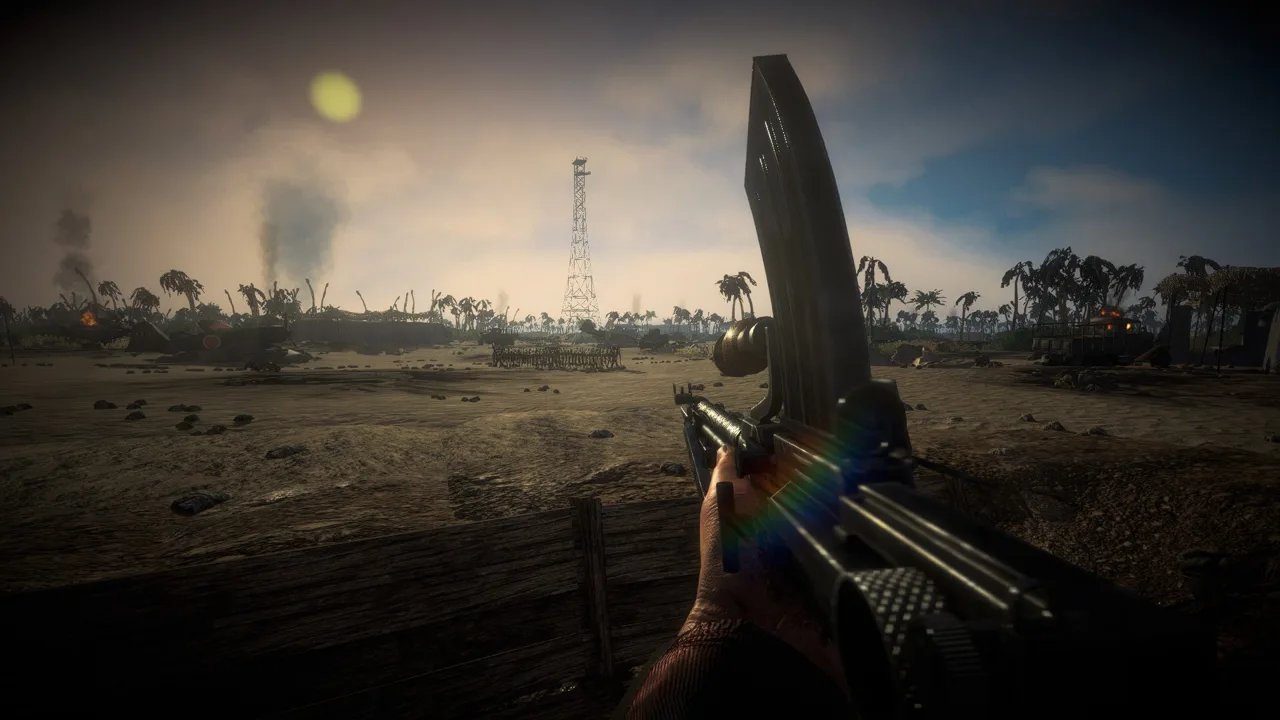 Image: Steam / Marco Amadei
- In Steam, right-click Easy Red 2.
- Select Manage > Browse local files.
- Find
Easy Red 2.exein the folder Steam opens. - Download the BepInEx 6 Unity IL2CPP Windows x64 package from the official BepInEx distribution.
- Extract the archive's contents directly into the folder beside
Easy Red 2.exe. - Launch the game without adding plugins.
- Let the initial loading process finish, then close the game.
The first launch takes longer while BepInEx generates the files it needs. Later launches load faster.
Extract the archive's contents into the game folder itself. Do not leave the loader buried inside an extra folder named after the downloaded ZIP.
After initialization, the locations you will use include:
BepInEx\pluginsfor gameplay plugins.BepInEx\configfor plugin settings.BepInEx\LogOutput.logfor troubleshooting.
Download plugins from trusted distribution channels. Gameplay plugins execute code, so inspect their published code when practical and pay attention to their installation requirements.
How to Install and Update Gameplay Mods
Once the loader starts successfully, download a compatible mod and follow its packaging instructions. For a straightforward plugin installation, extract its files into BepInEx\plugins.
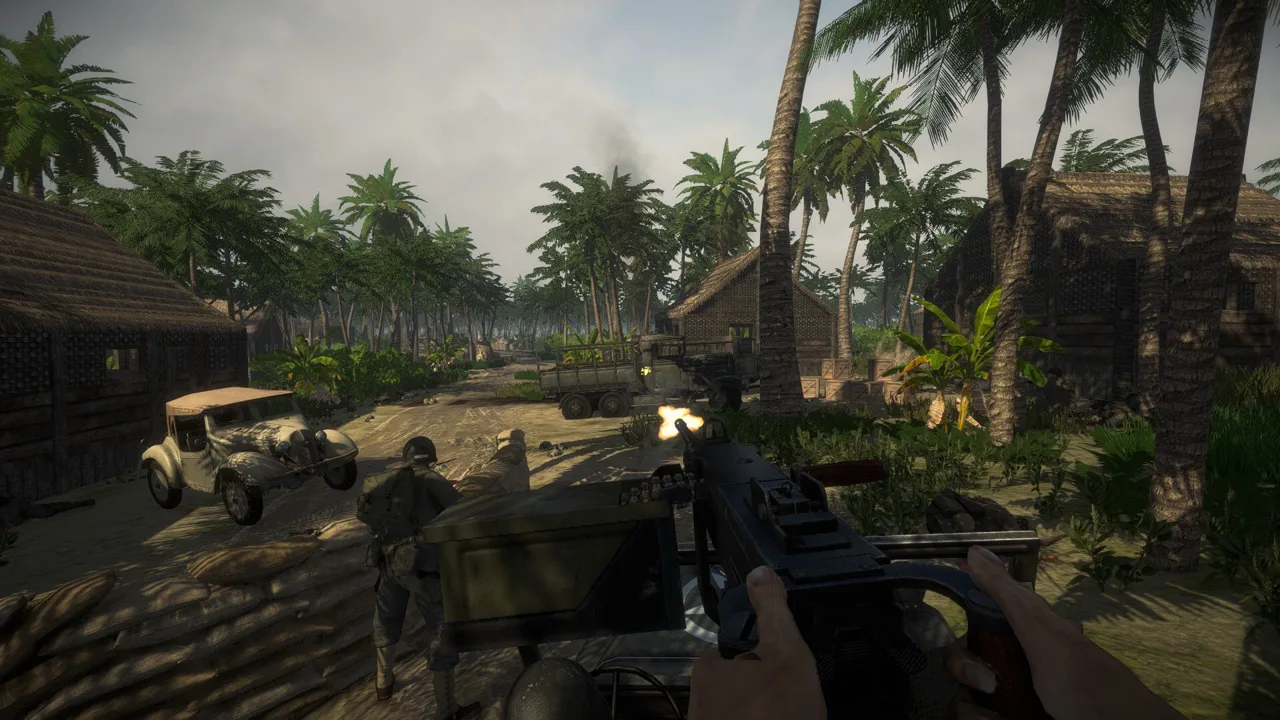 Image: Steam / Marco Amadei
Add one plugin at a time and launch the game between additions. This makes it easier to identify which addition introduced a crash, missing feature, or performance problem.
Example: ER2RealismOverhaul
ER2RealismOverhaul changes infantry tactics, cover selection, emplacement staffing, weapon handling, and other battlefield systems. Its version 1.2.0 targets Easy Red 2 2.1.0, specifically Steam public-branch build 25255578 from September 11, 2026. Versions 1.1.3 and earlier do not work on 2.1.0.
To install it:
- Complete the loader's initial launch and close the game.
- Open
BepInEx\plugins. - Create a folder named
ER2RealismOverhaul. - Place
ER2RealismOverhaul.dllinside that folder.
The resulting plugin path is:
BepInEx\plugins\ER2RealismOverhaul\ER2RealismOverhaul.dll
Do not put the DLL in Easy Red 2_Data.
To update the mod, close the game and replace the existing DLL with the newer release. Its saved settings remain in:
BepInEx\config\ca.antoi.er2.tacticalai.cfg
To uninstall the overhaul, close the game and remove its DLL. Remove that configuration file too if you also want to discard its settings.
What the Overhaul Changes
Its configurable systems include more deliberate use of cover, improved squad coordination around objectives, infantry dismounting from threatened transports, and checks for friendlies in firing lanes.
Version 1.2.0 gives attacking infantry a configurable 20% garrison target, rounded down, while distributing remaining squads across unfinished objectives. The mod retains the game's native vehicle armor and basic damage model.
Use the F10 settings menu to adjust individual systems. The mod includes Quality, Balanced, and Large Battle presets, plus controls for disabling its systems.
Troubleshooting Crashes, Missing Plugins, and Lag
Start with the stage that fails: loader startup, plugin loading, or gameplay. Changing everything at once makes a useful error harder to isolate.
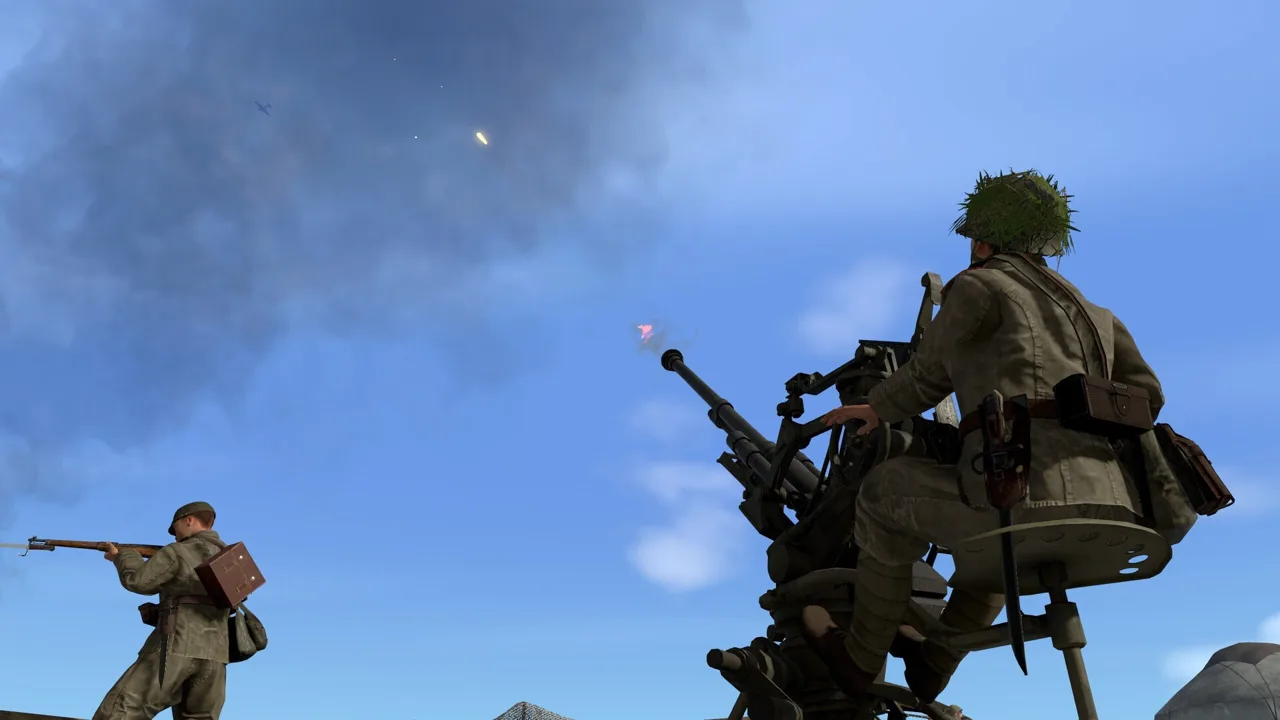 Image: Steam / Marco Amadei
The Game Crashes During Initial Loader Startup
Check the package before adding or replacing mods:
- It must be BepInEx 6.
- It must target Unity IL2CPP.
- It must target Windows x64 for this installation.
- Its contents must sit beside
Easy Red 2.exe.
If startup displays an error about failing to generate IL2CPP interop, preserve BepInEx\LogOutput.log and troubleshoot the loader with no gameplay plugins installed. Recheck the build requirements before choosing a replacement package.
The Game Starts, but a Mod Does Nothing
Check the DLL's location and the mod's game-version requirements. For the overhaul example above, the DLL belongs under BepInEx\plugins\ER2RealismOverhaul, rather than the game's data folder.
Keep the loader version and plugin version distinct. Installing the correct BepInEx package does not make an outdated gameplay plugin compatible with changed game code.
For ER2RealismOverhaul, inspect the F10 menu header for features that failed to attach. Its log entry beginning Compatibility summary for Easy Red 2 identifies affected modules and missing game types or methods.
Features Stop Working After an Update
Check the plugin's supported build before continuing a modded session. The compatibility target listed above is 2.1.0, while the game's 2.1.1 “Cold Steel” update introduces additional gameplay systems, including new melee behavior.
With ER2RealismOverhaul, individual features attach separately. A changed method can disable the affected feature while other modules continue operating. Reproduce the problem and retain the log from that session when submitting a bug report.
Performance Drops After Adding a Plugin
Close the game, remove the newly added plugin from the active plugins folder, and repeat the same mission. If performance recovers, check that plugin's release requirements before reinstalling it.
Avoid combining old and new copies of the same mod. When updating ER2RealismOverhaul, replace its existing DLL.
How Multiplayer Works With ER2RealismOverhaul
For this overhaul, only the host needs the mod for its host-authoritative gameplay systems. Players without BepInEx can join and experience the AI behavior and battlefield results synchronized by the game.
Local features work differently:
- Unmodded players do not receive the F10 menu, HUD changes, audio options, or first-person presentation settings.
- Players running the same mod version receive the host's settings for the session. Their menu becomes read-only, and their own configuration returns after disconnecting.
- The physical flight model applies only to human aircraft locally controlled by players running the mod. AI aircraft and unmodded pilots retain native flight physics.
Keep a player running the same mod version as host. If hosting passes to an unmodded player, the overhaul's host-authoritative systems stop running.
The shared infantry squad feature requires the joining player to have the mod installed. Open the multiplayer player list, select an allied player, and choose Join [player]'s squad. This moves your current soldier only; your former AI squadmates stay behind. Vehicle crews are excluded, and respawning does not automatically rejoin that shared squad.
These multiplayer rules belong to ER2RealismOverhaul. Follow each additional plugin's own requirements.
When to Use the Built-In Mission Tools Instead
Use BepInEx for a plugin that explicitly requires it. For mission creation, explore the game's native scripting tools before adding a runtime plugin.
The 2.1.1 “Cold Steel” update expands those tools:
| Built-in feature | What you can do |
|---|---|
| Dynamic Operations prototype | Play seed-generated battles, with the same seed reproducing a specific battle |
vehicle:moveTo(position, radius) | Order an AI vehicle crew to move to a position |
vehicle:holdPosition(radius) | Assign a vehicle crew to hold an area while gunners continue engaging enemies |
soldier:addItemToInventory(itemID) | Add weapons, magazines, bandages, helmets, or other items |
er2.bindKey and er2.bindKeyUp | Trigger registered callbacks on key presses and releases |
| Lua scripts on placed props | Run a prop's script once when the battle begins |
Dynamic Operations itself is built through in-game mission scripting. That gives scenario makers a concrete example of what the native tools can handle.
Keyboard script bindings are local and ignored while a menu or chat is open. For synchronized item spawning, er2.spawnItem(itemID, position, rotation) runs only on the master client.
Explore the mission scripting resources through the Easy Red 2 official website when building scenarios around these commands.
Getting Started With Your Own C# Plugin
For gameplay changes that require BepInEx, start with C# knowledge and a BepInEx 6 IL2CPP project. Run the game with the loader installed before configuring your development references.
The development workflow uses:
- A C# development environment, such as Visual Studio or Rider.
- BepInEx project templates for creating an IL2CPP plugin.
- The generated
BepInEx\interop\Assembly-CSharp.dllas a game reference. - HarmonyX for patching supported game methods.
- Optionally, the IL2CPP.CoreCLR version of Unity Explorer for inspection and debugging.
The interop assembly exposes wrappers that call the game's compiled methods. It does not restore the original gameplay implementation into readable C#.
Keep patches narrowly scoped and preserve native behavior when your conditions do not apply. Distribute your own plugin files, respect each project's license, and keep game files and decompiled game code out of your releases.
Continue with
 Easy Red 2 Mods: Custom Missions, Maps, and VehiclesExplore Easy Red 2 mods for custom maps, missions, vehicles, and factions. Learn about PC support, Workshop dependencies, and new mission scripting tools.
Continue exploring
Join the community
Official channels for news, updates and player help: