
Easy Red 2 How to Enter Private Match: Join Friends
Easy Red 2 how to enter private match: join through a host invite or a server name. Use the PC invite option and learn why private rooms stay off the list.
Jump to
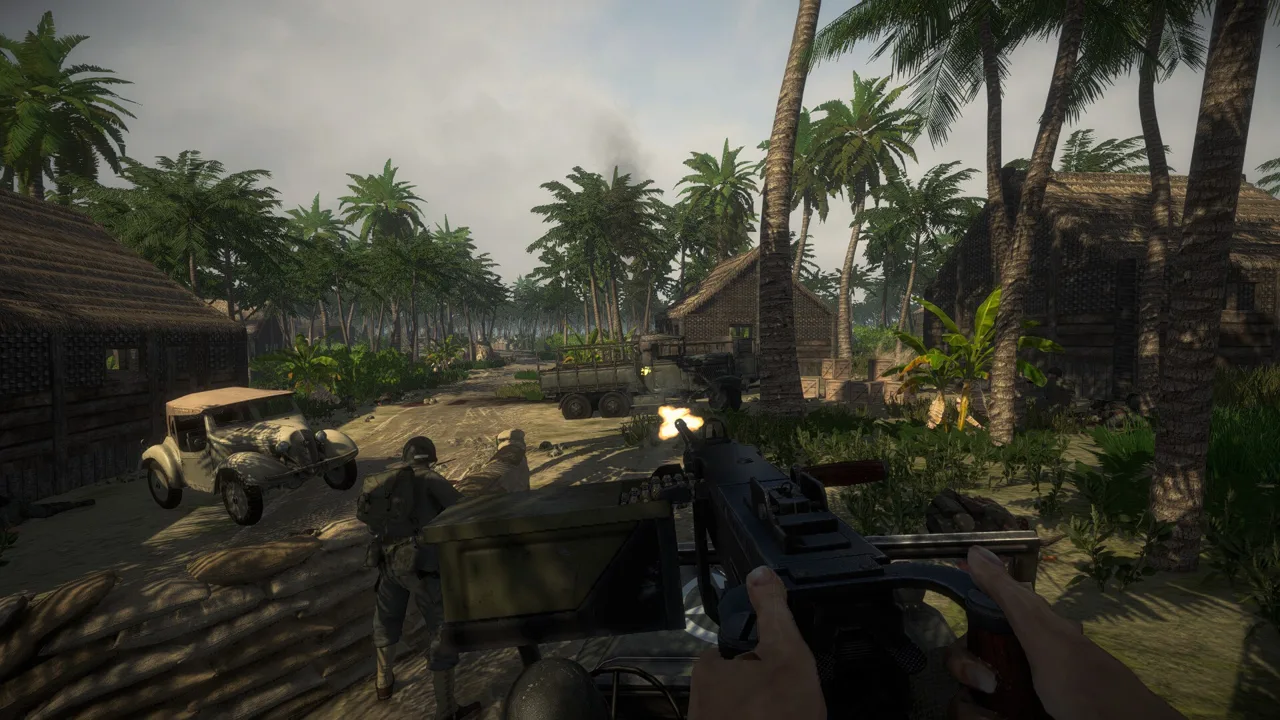
Your friend’s private battle won’t appear in the public server list. If you’re searching for “Easy Red 2 how to enter private match,” you can get in through a host invitation or by entering the private server’s name.
How to Enter a Private Match
There are two ways into a private multiplayer session: use its name from the server-list screen, or accept an invitation from the host.
Join Using the Private Server’s Name
The host gives a private multiplayer server a name when creating it. Ask them to send you that name, then:
- Open the multiplayer screen that displays public servers.
- Find the field for entering a server name.
- Enter the private server’s name and use the accompanying join control.
Enter the server name the host chose, rather than their player name. Copy it carefully to avoid a typing mistake.
Private servers stay outside the public server list. Use the name-entry field to reach the session directly instead of waiting for it to appear while browsing.
Join Through a Host Invitation on PC
On PC, the host can send invitations from inside the session:
- Have your friend host the private multiplayer match.
- Ask the host to press Esc.
- Have them choose Invite Friends and invite you.
- Accept the invitation to join their session.
If you’re hosting, open the pause menu to find the invitation option. If you’re joining, ask the host to send the invitation from there.
What to Do If You Still Can’t Join
Start by separating a hidden server from a failed connection. A private match missing from the public list is expected. If entering its name fails, ask the host to send an invitation through the PC pause menu. If the invitation route fails, try entering the server name.
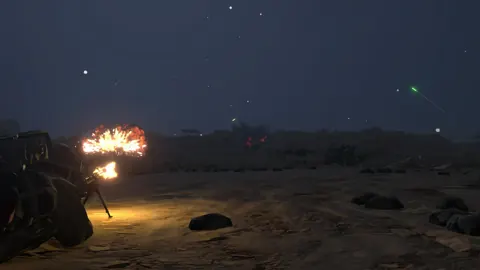
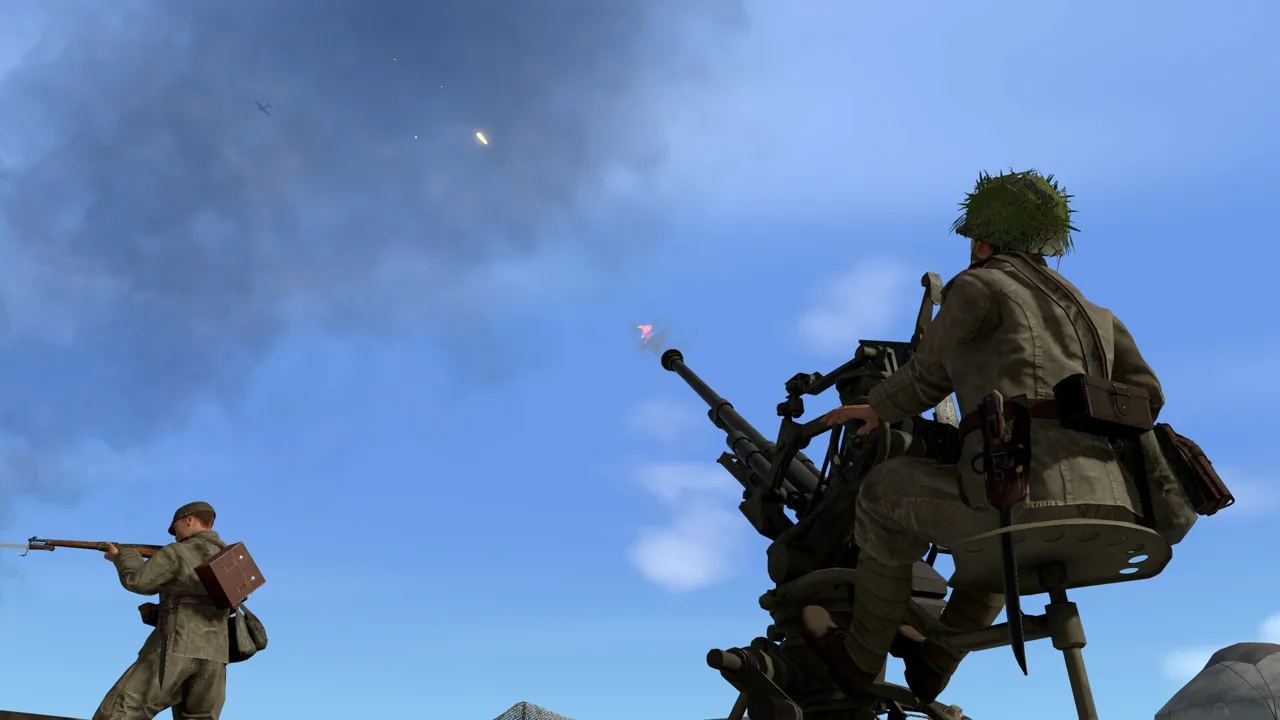 Image: Steam / Marco Amadei
For a persistent connection problem, record the steps that trigger it and contact the team through the Easy Red 2 support page. Include:
- Your platform and whether you’re hosting or joining.
- Whether you used an invitation or entered the server name.
- The selected map or mission.
- Any installed mods.
- Whether the failure happens every time or only sometimes.
On Windows, reproduce the issue, close the game, and collect Player.log from:
%USERPROFILE%\AppData\LocalLow\CorvoStudio\Easy Red 2\Player.log
Copy the log before launching the game again, because the next launch overwrites it. Console players can send a screenshot or photo of the error together with the steps that caused it.
Find Logs on Mac, Linux, and Steam Deck
On Mac, the log is located at:
~/Library/Logs/Corvostudio/Easy Red 2/Player.log
The Library folder is hidden by default. Use Finder’s Go to Folder option to reach it without changing your folder visibility settings.
On Linux, collect the file from:
~/.config/unity3d/CorvoStudio/Easy Red 2/Player.log
Steam Deck uses that same Linux path. Switch to Desktop Mode and use Dolphin to reach the file. On each of these platforms, reproduce the problem and close the game before collecting the log.
If you’re describing a PC issue, include your graphics API: DX11, DX12, or Vulkan. Write out the sequence from launching the game through the moment joining fails so the team can reproduce what happened.
Capture the In-Game Console on Consoles
Console players cannot access the game’s log files, but the in-game console provides another way to capture a problem:
- Play until the problem occurs.
- Hold the left bumper: LB, L1, or L.
- Without releasing it, enter Up, Left, Down, Right on the D-pad three times in a row.
- Take a photo of the console while the problem is happening.
Keep the bumper held throughout all three repetitions. Send the photo with a description of what you were doing when the connection failed.
Include Custom Content When Relevant
If the problem happens on a particular custom map or mission, send its Steam Workshop link with your report. For custom content shared as local files, zip the entire map or mission folder with everything inside. That lets the team load the same content while investigating the issue.
Continue with
 Easy Red 2 Multiplayer: Co-Op, PvP, and Crossplay GuideExplore Easy Red 2 multiplayer with a guide to co-op, PvP, Xbox player limits, bots, and squad tactics. Plan your battle with friends on the front lines.
More in Multiplayer
See all Multiplayer
Continue exploring
Join the community
Official channels for news, updates and player help: