
Easy Red 2 Best Settings: AI, Aiming, and Steam Deck
Find Easy Red 2 best settings for tougher AI, clearer iron sights, and Steam Deck troubleshooting. Tune difficulty and controls before your next mission.
Jump to
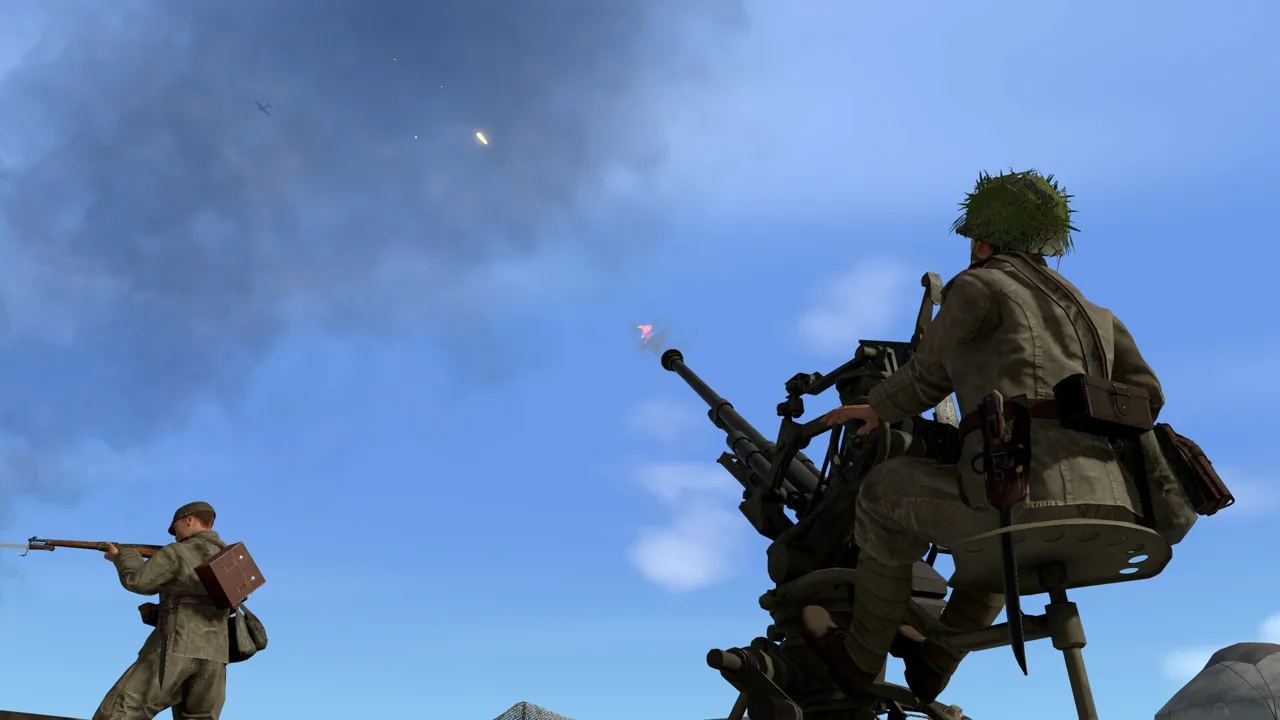
A readable sight picture and the right difficulty can make a firefight far more satisfying. Easy Red 2 best settings start with AI tuning, useful HUD information, and comfortable aiming controls. Get those settled before increasing the number of soldiers or stripping every marker from the battlefield.
Set AI Difficulty Before Starting a Mission
The AI accuracy controls sit in the mission setup screen. Select a mission, then open Difficulty Settings before starting the battle. In the v2.0.9 interface, that button sits directly beneath Back.
For a demanding infantry setup, use the following values as a starting point. These are adjustments for harder combat, so leave them alone while learning movement, equipment, and squad commands.
| Setting | Suggested harder setup | Purpose |
|---|---|---|
| AI accuracy | 1.4; increase toward 1.5–1.6 for more difficulty | Makes exposure to enemy fire more dangerous |
| Damage | 1.5 | Raises the stakes of taking hits |
| Explosion radius | 1.4–1.5 | Makes explosive threats harder to escape |
| Plane aggressiveness | 1.5 | Adds pressure from aircraft |
| HUD | Keep objective markers initially; remove more for immersion | Preserves direction while reducing screen clutter |
| Crosshair | Off for a more immersive infantry setup | Encourages aiming through weapon sights |
Start at the lower end of the accuracy range. 1.6 is a particularly punishing setting, especially alongside increased damage and explosion radius.
Change one value between attempts so you can judge its effect. If rifle fire already makes crossing a street difficult, finish tuning accuracy before adding more explosive pressure.
Use cover, smoke, and squad support with this setup. Advance alongside the frontline in a tank, and check where friendly troops are moving before firing into an objective. Larger explosions make careless shots especially costly.
Balance Unit Amount and HUD Visibility
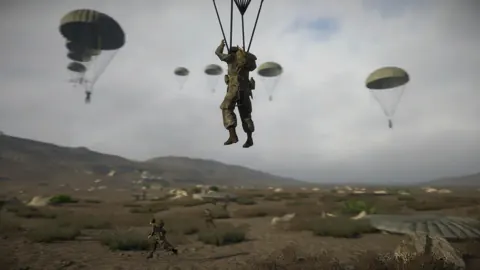
The unit amount setting can make a battle busier, but increasing it also changes the challenge. Combined with aggressive custom difficulty, it can make certain missions extremely difficult or effectively unwinnable.
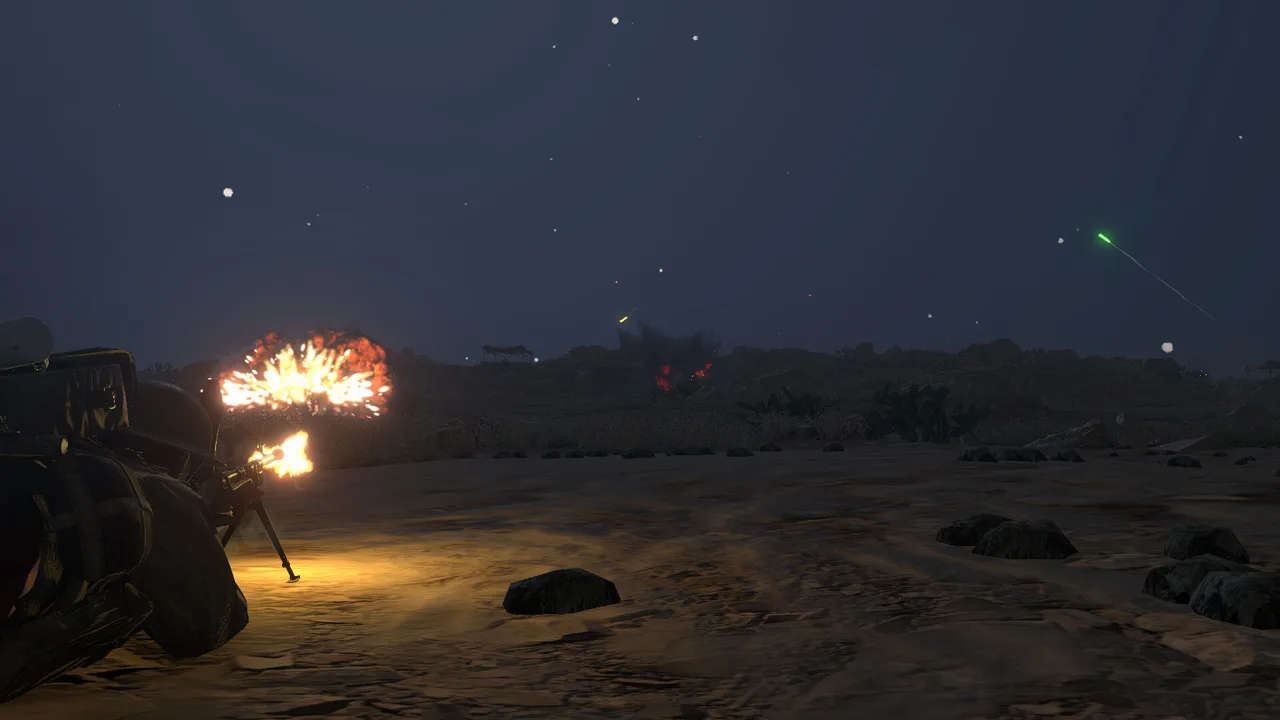 Image: Steam / Marco Amadei
Keep unit amount unchanged while adjusting accuracy and damage. Once that combination feels manageable, experiment with the force balance separately. For another demanding infantry option, try Realistic difficulty with evenly matched forces or a slight numerical disadvantage.
Choose HUD visibility around how well you know the mission:
- Learning a mission: Keep objective information visible so you can follow each phase.
- Reducing clutter: Remove the crosshair and retain capture markers.
- Pursuing immersion: Turn off the HUD once you can navigate and recognize objectives comfortably.
Complete a mission with reduced HUD information before removing everything. Easy Red 2 moves through successive objectives, and keeping those markers visible helps you stay with the battle as it advances.
Adjust Iron Sights and Controller Features
Version 2.1.1 adds an optional gun sight size adjustment for weapons with very narrow metallic sights. Try it when a cramped iron sight makes aiming uncomfortable; the adjustment applies specifically to those narrow sights.
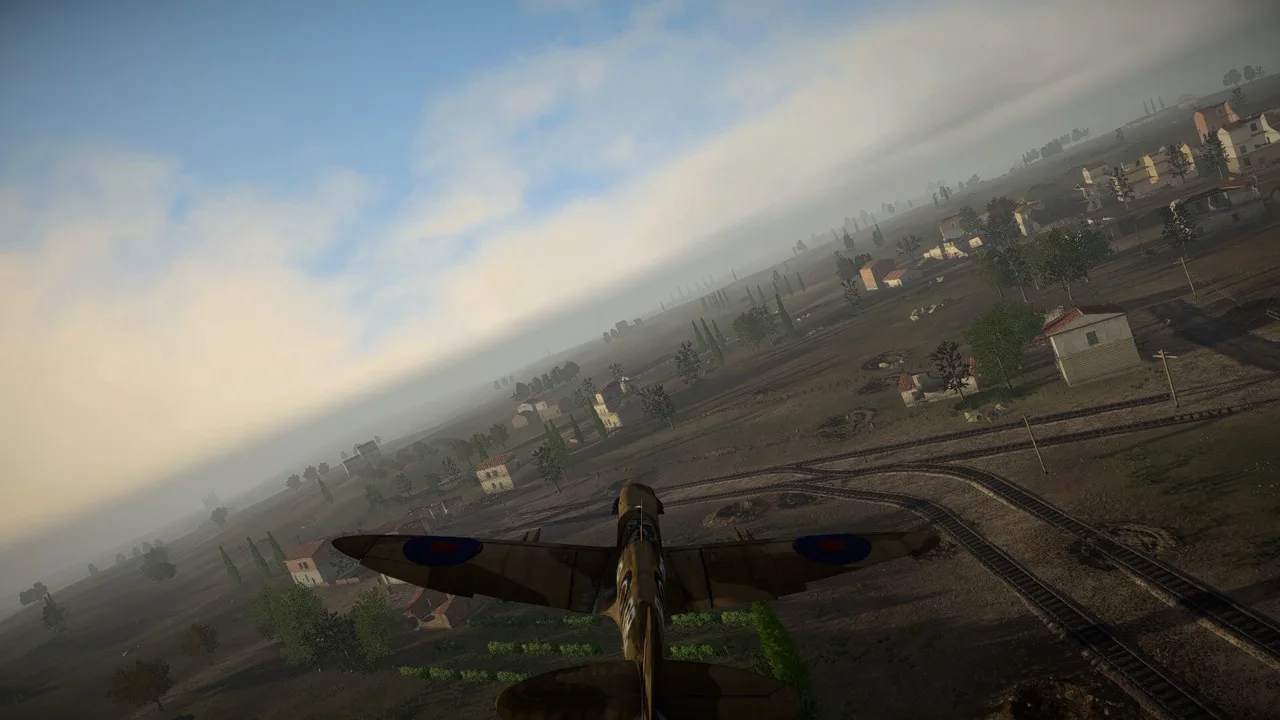 Image: Steam / Marco Amadei
That update also improves the close-up blur effect while aiming and adds controller features with specific platform and input requirements.
| Feature | Version 2.1.1 support |
|---|---|
| Gun sight size adjustment | Weapons with very narrow metallic sights |
| DualSense Adaptive Triggers | Windows, through Steam Input and Direct Input |
| DualShock 4 and DualSense gyro controls | Through Direct Input |
| Adaptive Triggers on PlayStation | Unavailable in the PlayStation Crossgen build |
For supported Windows controllers, choose an input mode that includes the feature you want. DualSense Adaptive Triggers work through either listed mode, while the added DualShock 4 and DualSense gyro support uses Direct Input.
Practice aiming and equipment use in training before entering a full mission. Work through the controls for your preferred role, then check vehicle functions separately. Tank ammunition selection deserves particular attention if you regularly switch between infantry and armor.
Troubleshoot Steam Deck and Linux Graphics
Easy Red 2 is Steam Deck Verified and has a native Linux version. Keep the existing setup if it runs comfortably; compatibility changes are most useful when you are addressing a specific problem.
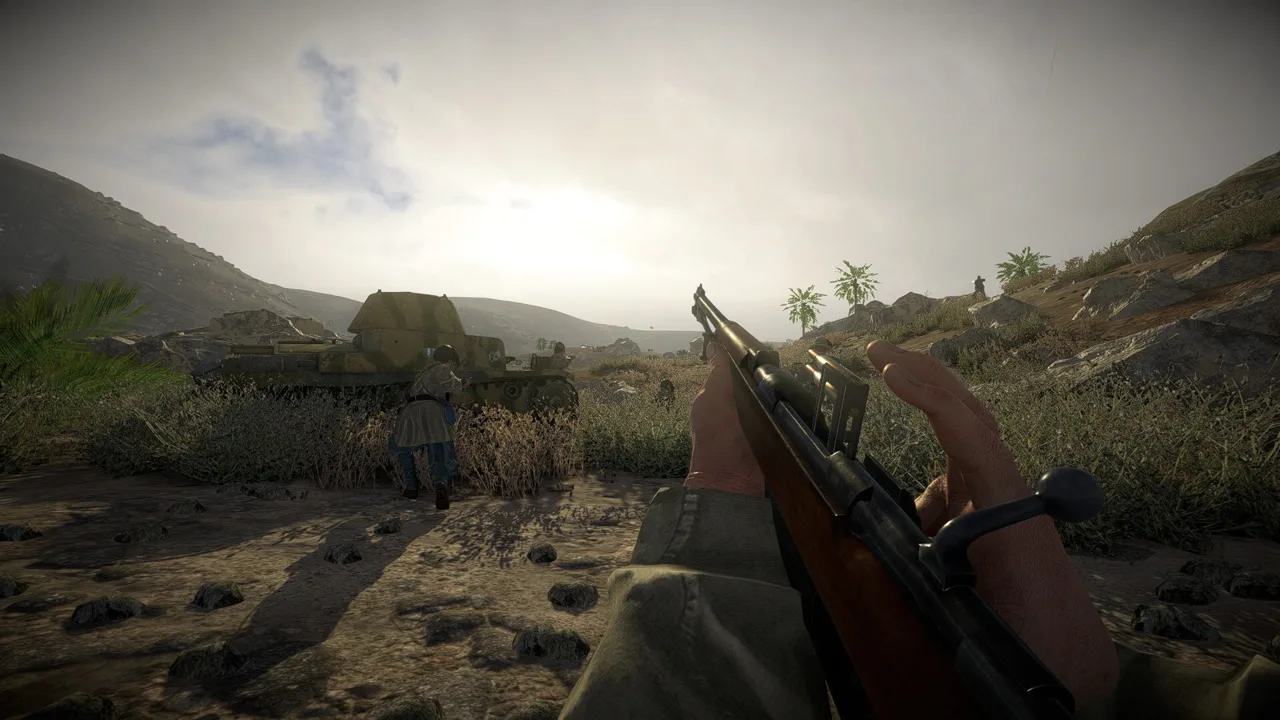 Image: Steam / Marco Amadei
For graphics or performance trouble, work through these targeted checks:
- Mostly black image with depth of field enabled: Disable depth of field. This issue affected an older Steam Deck setup.
- Performance drops in the native Linux build: Compare it with Proton using the same mission and graphics settings.
- Problems while using Proton: Try the Vulkan API launch option and compare the result with your current renderer.
Native Linux and Proton can behave differently under heavy battlefield activity. Test an active fight rather than judging performance from an empty area or the menu.
Keep each comparison controlled: use the same mission, leave unit amount unchanged, and alter one graphics or compatibility choice at a time. That makes it easier to identify which change actually improves your experience.
Capture Useful Details When Problems Persist
If a graphics problem, crash, or mission bug keeps returning, record the mission, whether you were playing single-player or multiplayer, your graphics API, and any installed mods. Include the actions that trigger the problem and whether it happens consistently.
On PC, reproduce the issue, close the game, then collect Player.log before launching again. The next launch overwrites the log.
- Windows:
%USERPROFILE%\AppData\LocalLow\CorvoStudio\Easy Red 2\Player.log - macOS:
~/Library/Logs/Corvostudio/Easy Red 2/Player.log - Linux and Steam Deck:
~/.config/unity3d/CorvoStudio/Easy Red 2/Player.log
On Steam Deck, switch to Desktop Mode to reach the file with Dolphin.
Console players can capture the in-game console instead. Hold LB / L1 / L, enter ↑←↓→ three times without releasing the bumper, and photograph the console while the issue is happening. Use the Easy Red 2 support page for the reporting instructions.
Continue with
 Easy Red 2 Controller Not Working: Settings to CheckEasy Red 2 controller not working? Review button rebinding, action prompts, Steam Deck support, and Windows gamepad features to narrow down the problem.
More in Settings
Easy Red 2 Increase FOV: Limits and Zoom Settings Guide
Looking for Easy Red 2 increase fov options? Explore what 65 vertical FOV means, how aiming zoom differs, and what to know before using PC camera mods.
Easy Red 2 Sensitive Content: What the Toggle Changes
Easy Red 2 sensitive content changes German flag symbols. Learn what the toggle does, why restarting can help, and how it works with historical unit mods.
Easy Red 2 Total Units: Battle Size and Mod Limits Guide
Easy Red 2 total units explained: compare soldiers and player slots, explore the 3,200-unit PC mod, and avoid battle-size problems that stall your attacks.
Continue exploring
Join the community
Official channels for news, updates and player help: